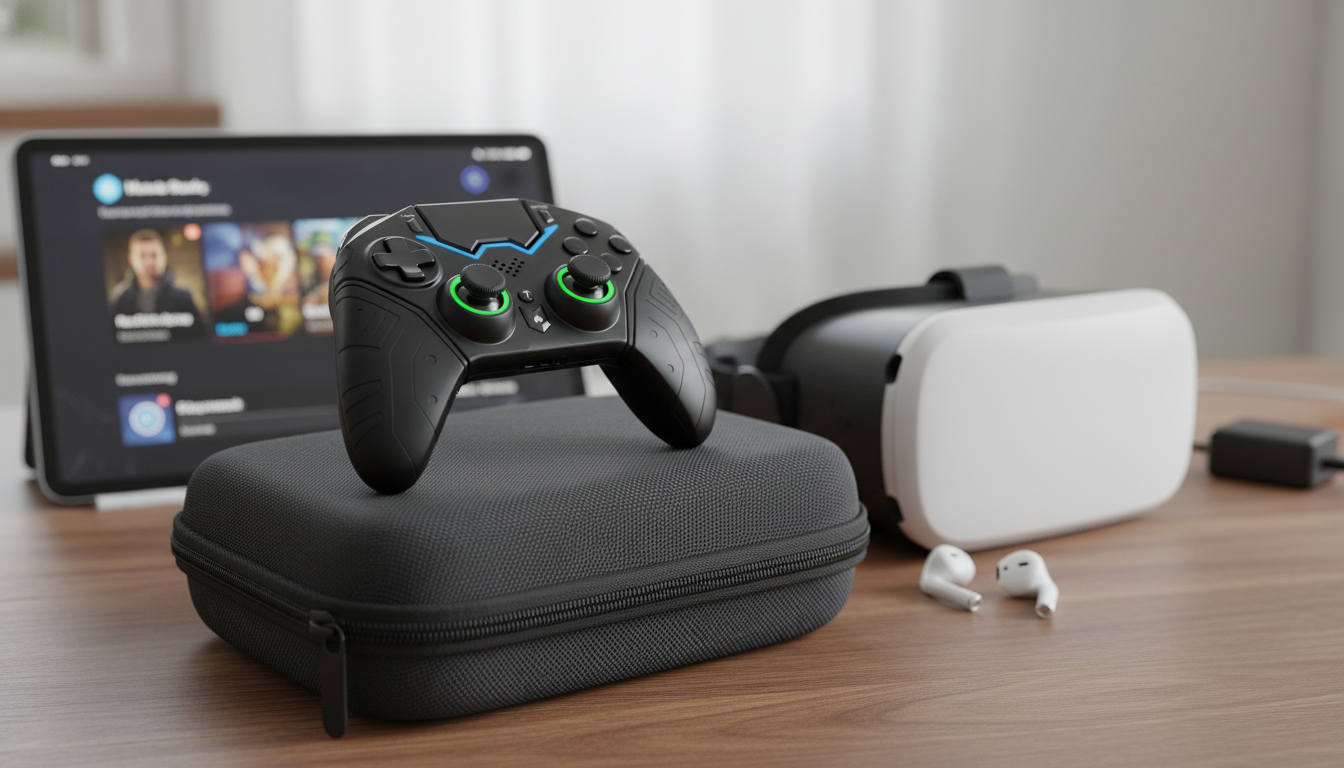
A wireless Bluetooth controller that pairs quickly—plus a structured protective case—can make gaming feel effortless whether you’re on the couch, commuting, or traveling. The controller handles the play; the case handles the real-world stuff like bag pressure, dust, and accidental bumps. When both pieces work together, it’s easier to keep your setup organized and ready to go without hunting for cables or worrying about scuffs.
If you’re shopping for a simple, portable option, check out the Wireless Bluetooth Game Controller with VR & Protective Carry Case for a grab-and-go bundle designed around quick pairing and safer storage.
This type of bundle is built for convenience: you get a wireless Bluetooth game controller for compatible devices, plus a VR-style protective carry case that helps keep everything together.
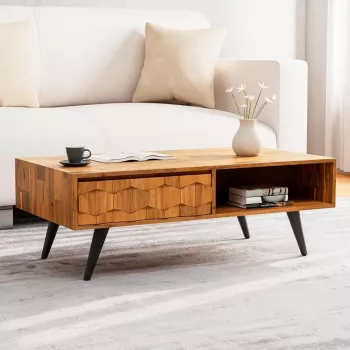
For a comfortable home base for your gear between sessions, a simple living-room landing spot can help—like a side table or coffee table that keeps your case and accessories off the floor. If you’re also upgrading your space, the Stylish Wood Coffee Table can work as a neat “drop zone” for controllers, chargers, and travel cases.
Controller compatibility is usually less about the controller and more about what the platform and game allow. Phones, tablets, PCs, and VR media devices may support different Bluetooth controller profiles or have game-by-game limitations. If you’re ever unsure, start by confirming the game itself supports a controller, then pair at the operating-system level.
A reliable pairing flow looks like this:
If you’re pairing to iPhone or iPad, Apple’s overview of supported controllers and connection steps is a helpful reference: Apple Support: Connect a wireless game controller to your Apple device. For Windows troubleshooting, Microsoft’s Bluetooth guide is also handy: Troubleshoot Bluetooth in Windows.
| Platform | What to Verify | Common Fix if It Doesn’t Work |
|---|---|---|
| Android phone/tablet | Bluetooth gamepad support in the game/app | Enable controller mode in-game; reconnect Bluetooth |
| iPhone/iPad | Controller support in iOS and the specific game | Update iOS; try re-pairing; check game settings |
| Windows PC | Bluetooth adapter + gamepad mode supported by the game | Use a USB/Bluetooth dongle; switch input mode in game settings |
| VR media/phone VR | Whether the headset app supports external controllers | Check headset app requirements; pair controller before launching |
Some PC games expect an XInput-style controller layout, while others accept DirectInput. If a game recognizes the controller but the buttons feel “wrong,” look for an in-game toggle, a controller mode switch, or a remapping screen. The Bluetooth technology itself is standardized (Bluetooth SIG maintains the core spec), but how games interpret inputs can vary: Bluetooth Core Specification (Bluetooth SIG).
Comfort is what makes a controller feel “easy” after 20 minutes—and still fine after two hours. The most important factor is stable hand placement: your palms should rest naturally, and your index fingers should reach triggers without stretching.
When traveling, comfort also includes setup speed: a controller that reconnects quickly encourages short play sessions without turning it into a whole project.
A few small habits help controllers last longer and behave more predictably:
Charge the controller, power it on, put it into pairing mode, then select it from your device’s Bluetooth settings. If it fails, “forget” any old pairing entries, restart Bluetooth (or the device), and try pairing mode again.
Sometimes—VR support depends on whether the headset software or the specific VR app accepts external controllers. Check the app requirements first, and pair the controller before launching the VR experience for the most consistent results.
Store the controller, charging cable, small adapters, and accessories in the case pockets or straps. Avoid loose heavy items that can press on sticks, buttons, or lenses during travel.


Leave a comment